Logging in to ManekiSpin requires the email address and password chosen during registration and opens the full personal account: cash and bonus balances and Wallet, the game catalogue, active bonuses, the sportsbook, transaction history, and security settings. The process works the same way on desktop and smartphone, including installations through the PWA app, and Google sign-in is also available. If two-factor authentication (2FA) is enabled, a one-time code is required as well.
This guide explains how to log in to ManekiSpin, recover your password, enable 2FA, and resolve the most common sign-in errors. All financial references are in Canadian dollars.
| Item | Details |
|---|---|
| Where to log in | manekispinsit.com – Log in button in the top-right corner |
| Credentials | Email and password, or sign in with Google |
| Two-factor authentication | Optional, with a one-time code |
| Password recovery | “Forgot password?” link on the login screen |
| Supported devices | Desktop, smartphone, tablet, and PWA app |
| Identity verification | Required for the first withdrawal, not for login |
| Currency | Canadian dollars (CAD) |
| Support | Live chat and email ([email protected]) |
How to log in to ManekiSpin
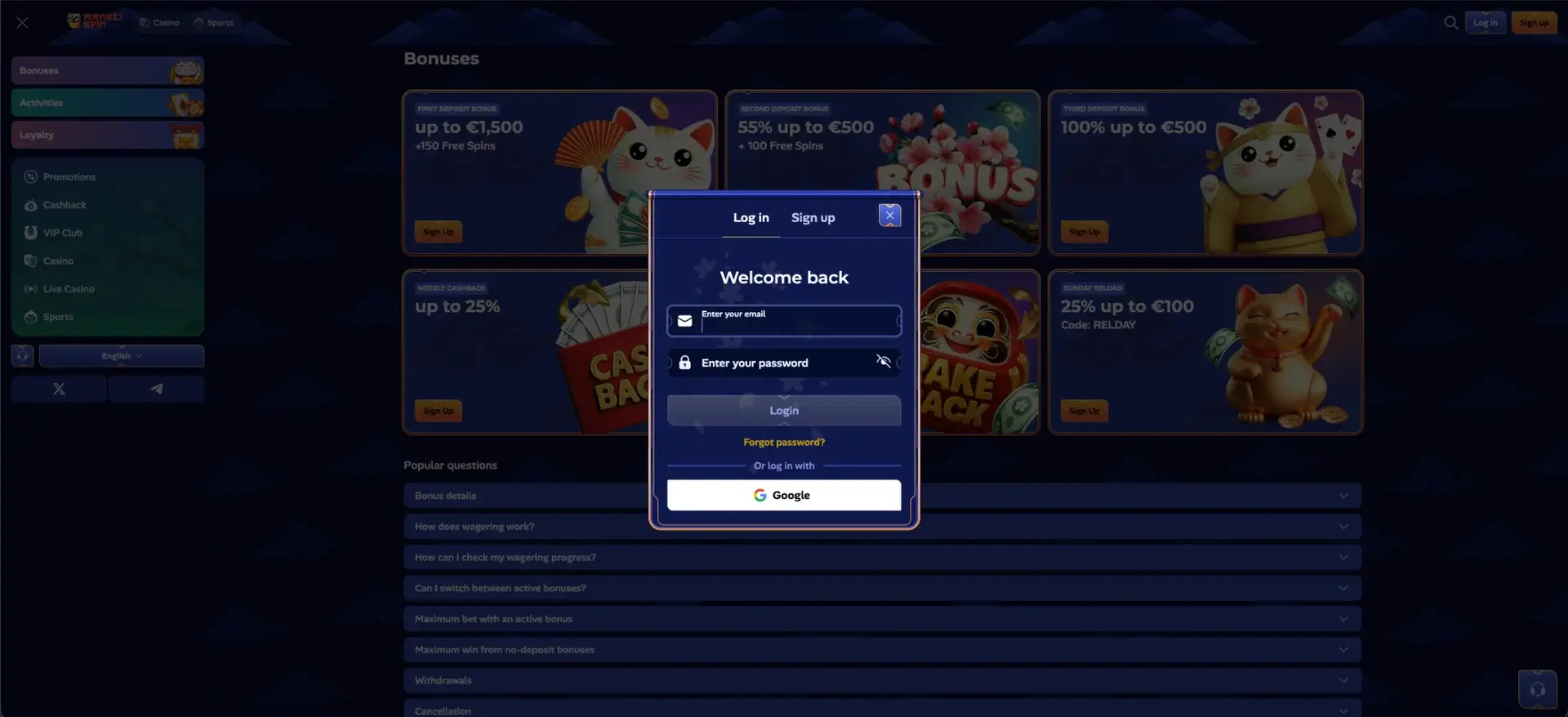
The ManekiSpin login process is quick and changes only slightly depending on whether two-factor authentication is enabled. With 2FA turned off, an email address and password are enough; with 2FA enabled, there is one additional step for entering the code. Follow these steps.
- Open manekispinsit.com and select the Log in button in the top-right corner.
- Enter the email address used during registration.
- Type the password, paying attention to uppercase and lowercase letters.
- Confirm to continue.
- If 2FA is enabled, enter the one-time code in the designated window.
- Wait for the dashboard to load without refreshing the page.
Instead of email credentials, you can use the “Or log in with Google” option on the same screen to access the account through the connected Google account.
Create an account before logging in
Anyone who does not yet have a profile must register first, since login is not possible without an account. Creating a profile requires only a few details and can also be completed through Google. These are the essential steps.
- Select Sign up on the login screen.
- Enter an email address and password and, where applicable, a promo code.
- Confirm that you meet the legal gambling age in your province or territory and accept the Terms and Conditions and Privacy Policy.
- Complete registration and log in for the first time with the newly created credentials.
To qualify for the welcome package, complete the profile with your first name, last name, date of birth, and phone number after the first login.
Two-factor authentication and login security
From the account’s Security Settings section, you can update the password, review the session log, and enable two-factor authentication. 2FA adds another layer of protection by requiring a temporary code each time you log in. A few good practices help keep the profile secure.
- Use a long, unique password that is different from passwords used for other services.
- Enable two-factor authentication in the Security Settings section.
- Do not share your credentials, and be cautious of requests for your password by email or chat.
- Review the session log regularly to identify unrecognized access.
Identity verification is not required when logging in. It is requested only for the first withdrawal under the casino’s KYC policy.
Password recovery
When a password has been forgotten, there is no need to create a new account: the login screen includes a reset process. It takes only a few steps to regain access to the profile.
- On the login screen, select the link Forgot password?
- Enter the email address associated with the account.
- Follow the instructions received to set a new password.
- Return to the login screen and sign in with the new credentials.
If the recovery message does not arrive within a few minutes, check the spam folder and make sure the correct address was entered. Contact support if further help is needed.
Mobile and PWA app login
Logging in to ManekiSpin from a smartphone uses the same credentials as the desktop version, whether access is through a browser or the PWA installed on the Home Screen. Account synchronization keeps the balance and profile details aligned across all devices. A few steps can make mobile login smoother.
- Install the PWA to open the account directly without reopening the browser each time.
- Enable push notifications for promotions and bonuses when desired.
- Use a stable connection for live games and video slots.
The PWA can display some content while offline, but an active internet connection is still required to play.
Solutions to common login problems
In most cases, login difficulties are caused by incorrect credentials or technical browser issues. The most common situations and their solutions are outlined below.
Incorrect email address or password
If the system reports incorrect credentials, verify the email address, make sure Caps Lock is turned off, and try again. If the problem continues, reset the password through the “Forgot password?” link.
Browser or cache problems
When the login page loads but the form does not respond, clearing the cache and cookies, disabling extensions that block scripts, and trying a different browser may help.
Invalid two-factor code
If the 2FA code is not accepted, make sure the device time is synchronized and request a new code. Contact support if the problem happens repeatedly.
Locked account
An account may be locked following a self-exclusion request or a security review. In these cases, the most direct solution is to contact support through Live Chat or email.
What becomes available after login
After logging in to ManekiSpin, the personal dashboard brings together all profile-management interfaces. Gaming, finances, bonuses, and security can be managed from one place. These are the main sections.
- Wallet: deposits, withdrawals, and cash and bonus balances.
- History: a record of gaming sessions, bonuses, and transactions.
- Security Settings: password, session log, and 2FA.
- Gambling Controls: budget limits, session duration, and self-exclusion.
- Notifications: support messages and promotion alerts.
The bonus and promotion pages also display personalized offers based on account activity.
Frequently asked questions about ManekiSpin login
Below are answers to the most common questions about logging in to ManekiSpin.
How do I log in to ManekiSpin?
Select Log in on the site, enter the email address and password, and provide the 2FA code when it is enabled. Google sign-in is also available.
I forgot my password. What should I do?
On the login screen, select “Forgot password?”, enter the account email address, and follow the instructions to set a new password.
Does login work on a smartphone?
Yes. Login is available through a mobile browser and the PWA app with the same credentials as the desktop version, and account data is synchronized across all devices.
Is identity verification required to log in?
No. KYC verification is not required at login and is requested only for the first withdrawal. An email address and password or a Google account are enough to sign in.
What should I do if my account is locked?
A lock may result from self-exclusion or security checks. The fastest option is to contact support through Live Chat or at [email protected].